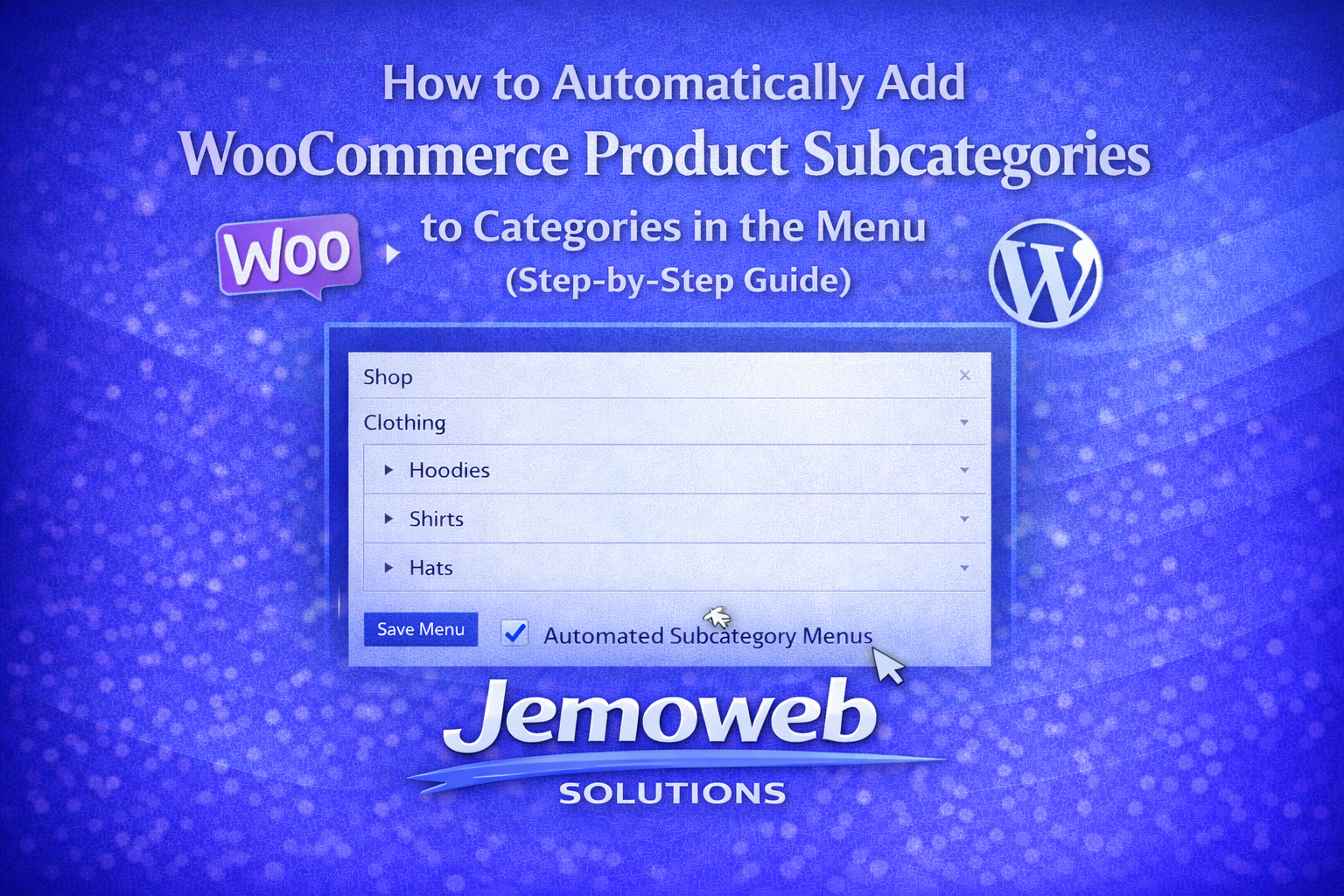
If you run a WooCommerce store with many product categories and subcategories, manually managing navigation menus can quickly become frustrating.
A smarter approach is to dynamically generate WooCommerce product subcategories directly inside your WordPress menu. This ensures that whenever you create a new product category, it automatically appears in your website navigation without manually editing menus.
However, many code snippets found online have one major problem:
- They add subcategories to ALL menus, including footer menus and mobile menus.
In this guide, we will show you how to:
- Automatically add WooCommerce product subcategories
- Support unlimited nested subcategories
- Restrict the functionality to ONLY your main menu
- Prevent footer menu duplication
- Use a reliable menu ID targeting method that works across most WordPress themes
Why Use Dynamic WooCommerce Menu Categories?
Dynamic WooCommerce menus help you:
- Save time managing navigation
- Automatically display newly created categories
- Improve product discoverability
- Create scalable store navigation
- Reduce menu maintenance for large stores
This is especially useful for websites selling:
- Car engines and gearboxes
- Electronics
- Fashion products
- Hardware products
- FMCG products
- Large inventory stores
The Problem With Most Existing Solutions
Many tutorials use:
$args->theme_locationor:
$menu->nameto detect the main menu.
Unfortunately, many WordPress themes:
- Use custom menu rendering methods
- Ignore standard menu locations
- Rename menu locations dynamically
- Break menu detection logic
As a result:
- Subcategories appear in footer menus
- Mobile menus become duplicated
- Navigation structures become messy
The most reliable solution is to target the actual WordPress menu ID.
Step 1 — Find Your Main Menu ID
Add this temporary code to your site:
</p>
add_filter( 'wp_get_nav_menu_items', function( $items, $menu ) {
echo '<pre>';
print_r( $menu );
echo '</pre>';
return $items;
}, 10, 2 );
<p data-start="2358" data-end="2395">
Now visit your website frontend.
You will see something similar to:
</p>
<p data-start="2613" data-end="2647">WP_Term Object
(
[term_id] => 17
[name] => Main Menu
)</p>
<p data-start="2613" data-end="2647">
Take note of the:
</div>
<div>term_id</div>
<div class="sticky bg-token-border-light">
In this example:
17
is the menu ID.
Remove the temporary debugging code after obtaining the ID.
Step 2 — Add the Dynamic WooCommerce Menu Code
Replace:
</div>
<div>17</div>
<div class="sticky bg-token-border-light">
With your actual menu ID.
add_filter( 'wp_get_nav_menu_items', 'wpcb_add_product_subcats_to_menu', 10, 2 );

function wpcb_add_product_subcats_to_menu( $items, $menu ) {

// CHANGE THIS TO YOUR MAIN MENU ID
$main_menu_id = 25;

// Only apply to the specified menu
if ( (int) $menu->term_id !== (int) $main_menu_id ) {
return $items;
}

// Do not run in admin
if ( is_admin() ) {
return $items;
}

$children_order = count( $items ) + 1;

foreach ( $items as $item ) {
$items = wpcb_process_menu_item( $item, $items, $children_order );
}

return $items;
}

function wpcb_process_menu_item( $item, $items, &$children_order ) {

if ( 'product_cat' === $item->object ) {

$children = get_terms( array(
'taxonomy' => 'product_cat',
'hide_empty' => false,
'parent' => $item->object_id,
'number' => 0,
'orderby' => 'name',
'order' => 'ASC',
) );

if ( ! empty( $children ) && ! is_wp_error( $children ) ) {

foreach ( $children as $child ) {

$tmp_item = new stdClass();

$tmp_item->ID = 100000 + $children_order;
$tmp_item->post_author = $item->post_author;
$tmp_item->post_date = '';
$tmp_item->post_date_gmt = '';
$tmp_item->post_content = '';
$tmp_item->post_title = '';
$tmp_item->post_excerpt = '';
$tmp_item->post_status = 'publish';
$tmp_item->comment_status = '';
$tmp_item->ping_status = '';
$tmp_item->post_password = '';
$tmp_item->post_name = $child->name;
$tmp_item->to_ping = '';
$tmp_item->pinged = '';
$tmp_item->post_modified = '';
$tmp_item->post_modified_gmt = '';
$tmp_item->post_content_filtered = '';
$tmp_item->post_parent = 0;
$tmp_item->guid = '';
$tmp_item->menu_order = $children_order;
$tmp_item->post_type = 'nav_menu_item';
$tmp_item->post_mime_type = '';
$tmp_item->comment_count = '';
$tmp_item->filter = 'raw';

$tmp_item->db_id = $tmp_item->ID;
$tmp_item->menu_item_parent = $item->ID;
$tmp_item->object_id = $child->term_id;
$tmp_item->object = 'product_cat';
$tmp_item->type = 'taxonomy';
$tmp_item->type_label = '';
$tmp_item->url = get_term_link( $child->term_id );
$tmp_item->title = $child->name;
$tmp_item->target = '';
$tmp_item->attr_title = '';
$tmp_item->description = '';
$tmp_item->classes = array( '' );
$tmp_item->xfn = '';

$items[] = $tmp_item;
$children_order++;

// Process subcategories recursively
$items = wpcb_process_menu_item(
$tmp_item,
$items,
$children_order
);
}
}
}

return $items;
}
Where to Add the Code
You can add the snippet using:
- Your child theme
functions.php - Or preferably a snippets plugin like:
Using a snippets plugin is safer because your code will not disappear during theme updates.
Final Result
Once implemented:
- Product subcategories automatically appear in your main menu
- Footer menus remain unaffected
- Unlimited subcategory levels are supported
- Navigation updates automatically when new categories are created
This creates a scalable WooCommerce navigation system ideal for large eCommerce stores.
add_filter( 'wp_get_nav_menu_items', 'wpcb_add_product_subcats_to_menu' );
if ( ! function_exists( 'wpcb_add_product_subcats_to_menu' ) ) {
/**
* wpcb_add_product_subcats_to_menu.
*
* @see https://wpcodebook.com/snippets/automatically-add-woocommerce-product-subcategories-to-categories-in-menu/
*/
function wpcb_add_product_subcats_to_menu( $items ) {
if ( is_admin() ) {
return $items;
}
$children_order = count( $items ) + 1;
foreach ( $items as $item ) {
$items = wpcb_process_menu_item( $item, $items, $children_order );
}
return $items;
}
}
if ( ! function_exists( 'wpcb_process_menu_item' ) ) {
/**
* wpcb_process_menu_item.
*/
function wpcb_process_menu_item( $item, $items, &$children_order ) {
if ( 'product_cat' === $item->object ) {
$children = get_terms( array(
'taxonomy' => 'product_cat',
'hide_empty' => false,
'parent' => $item->object_id,
'limit' => -1,
'orderby' => 'title',
'order' => 'ASC',
) );
if ( ! empty( $children ) && ! is_wp_error( $children ) ) {
foreach ( $children as $child ) {
$tmp_item = new stdClass();
$tmp_item->ID = 100000 + $children_order;
$tmp_item->post_author = $item->post_author;
$tmp_item->post_date = '';
$tmp_item->post_date_gmt = '';
$tmp_item->post_content = '';
$tmp_item->post_title = '';
$tmp_item->post_excerpt = '';
$tmp_item->post_status = 'publish';
$tmp_item->comment_status = '';
$tmp_item->ping_status = '';
$tmp_item->post_password = '';
$tmp_item->post_name = $child->name;
$tmp_item->to_ping = '';
$tmp_item->pinged = '';
$tmp_item->post_modified = '';
$tmp_item->post_modified_gmt = '';
$tmp_item->post_content_filtered = '';
$tmp_item->post_parent = 0;
$tmp_item->guid = '';
$tmp_item->menu_order = $children_order;
$tmp_item->post_type = 'nav_menu_item';
$tmp_item->post_mime_type = '';
$tmp_item->comment_count = '';
$tmp_item->filter = 'raw';
$tmp_item->db_id = $tmp_item->ID;
$tmp_item->menu_item_parent = $item->ID;
$tmp_item->object_id = $child->term_id;
$tmp_item->object = 'product_cat';
$tmp_item->type = 'taxonomy';
$tmp_item->type_label = '';
$tmp_item->url = get_term_link( $child->term_id );
$tmp_item->title = $child->name;
$tmp_item->target = '';
$tmp_item->attr_title = '';
$tmp_item->description = '';
$tmp_item->classes = array( 0 => '' );
$tmp_item->xfn = '';
$items[] = $tmp_item;
$children_order++;
$items = wpcb_process_menu_item( $tmp_item, $items, $children_order );
}
}
}
return $items;
}
}